What "Convert to Curves" Means
In a normal PDF, text is stored as characters tied to a font. Converting to curves (also called outlines or paths) redraws each letter as a vector shape and discards the underlying character data. The page looks identical, but the text is now artwork, not text.
Why Curves Protect Your Intellectual Property
- Stops content extraction — no one can select, copy, or scrape your wording.
- Protects your fonts — curves contain no font data, so licensed typefaces can't be harvested.
- Prevents tampering — text can't be retyped or altered without obvious redrawing.
- Guarantees fidelity — the file renders identically everywhere, even without your fonts installed.
How to Convert a PDF to Curves, Step by Step
Using PDF Agile on Windows, fully offline:
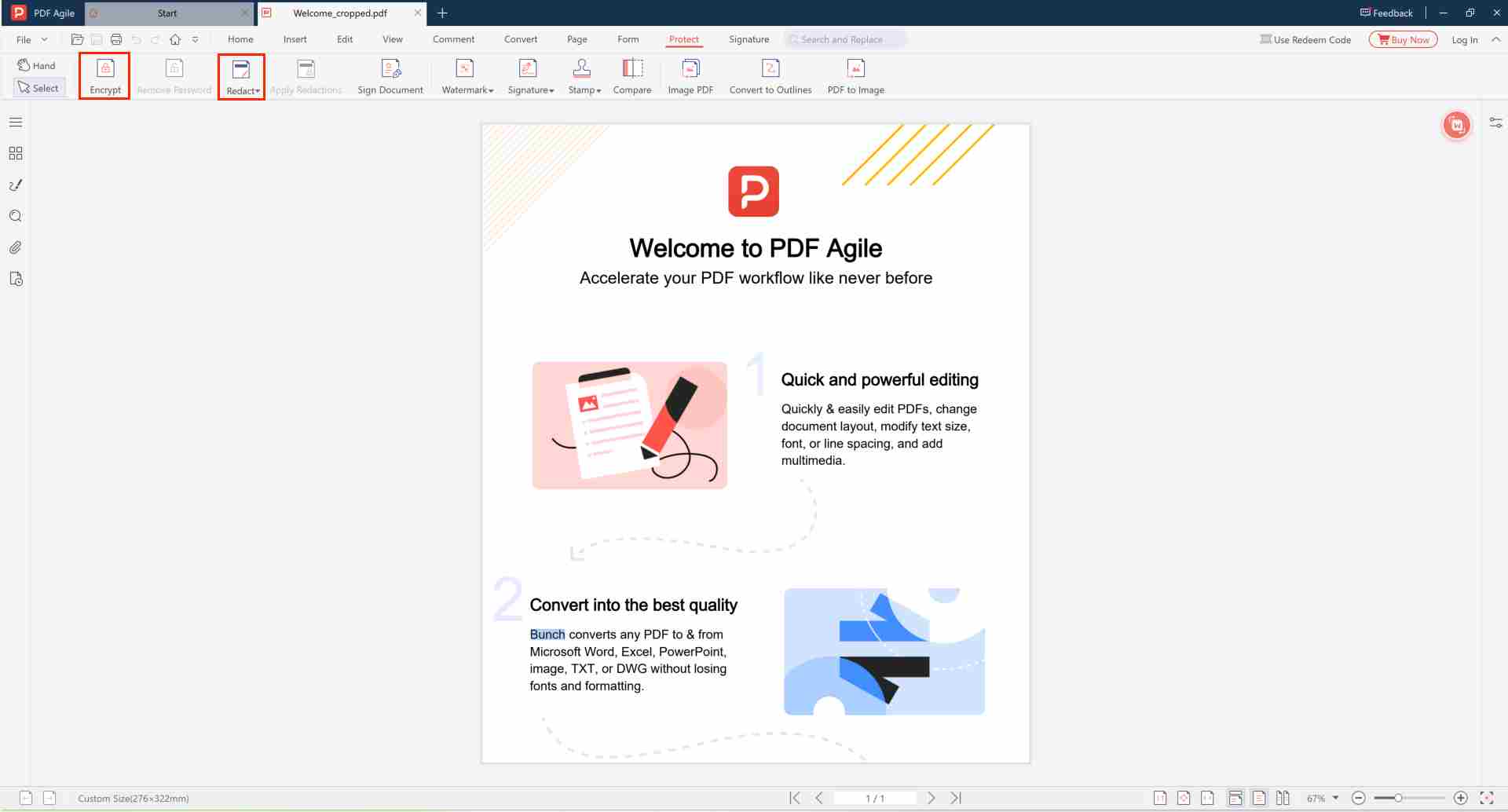
- Open the document in PDF Agile and keep an editable master copy for yourself. ▲ Location: File → Open. Always keep the original editable version before converting.
- Select the text or page content you want to flatten. ▲ Tip: After conversion, text becomes vector paths and can no longer be edited or extracted.
- Choose Convert to Curves / Flatten to Paths. ▲ Location: Top toolbar → Edit → Convert to Curves
- Confirm the operation. ▲ The text will be redrawn as vector shapes — this is one-way and cannot be undone.
- Save as a new file for distribution. ▲ Recommendation: Use File → Save As to create the curves version. Keep the original editable file separately.
Why PDF Agile for Converting to Curves?
| Feature | PDF Agile | Adobe Acrobat | Online Tools |
|---|---|---|---|
| Full Text-to-Curves Conversion | ✔ | ✔ | ✘ Limited |
| 100% Offline Processing | ✔ Local | ✔ | ✘ Uploaded to Server |
| Batch Conversion | ✔ | ✔ | ✘ Not Available |
| No Subscription Required | ✔ | ✘ Paid Subscription | ✔ |
| Encryption + Curves Combo | ✔ Supported | ✔ | ✘ Not Available |
The table above highlights the key differences between conversion tools. PDF Agile matches Adobe Acrobat on all five dimensions — full text-to-curves conversion, 100% offline processing, batch conversion, and encryption combo support — without requiring a paid subscription. Online tools fall short across the board: most offer only limited conversion, require uploading your files to a remote server, and lack batch processing and encryption support.
Curves Plus Encryption
Converting to curves protects the content from extraction; encryption protects who can open the file. For maximum security, convert to curves, then encrypt and restrict copying and printing. For the full rationale, read why convert PDF to curves to protect IP.
Protect Your Designs & Wording from Being Lifted
Flatten text to curves and secure the file offline, no upload.
⬇️ Download PDF AgileFrequently Asked Questions
🎨 Can text still be edited after converting to curves?
No. After conversion, text becomes vector artwork and cannot be modified with text editing tools. Always keep the original editable file before converting.
🖨️ Does it affect print quality?
No. Curves render identically to text at any resolution. The visual output looks exactly the same — only the underlying data structure changes.
🔒 Is this method fully offline?
Yes. All conversion operations run locally on your device. Your files never leave your computer during the process.